


- 27 Dec 2003
- 2,854
- 2,102
This is an explanation of how to embed an image into a post while using a Windows 10 computer. (I don't know how to do this on a cellphone. If anyone does, please feel free to share.)
First, choose an image you wish to to embed an image into a post. One thing I do is create a folder called x on my hard drive and copy the image into the folder. In some cases, it may be helpful to rename the file to a short file name. (Today I will be embedding an image of how hiragana characters evolved from kanji character.)
Create a post and type something into it.
There is a link below the typing area which says Attach files (with a picture of a paperclip next to it). Click on this link.
This will open up a File Download window. Navigate to where the file is. Click on the file and press Open. This will allow you to see a thumbnail of the image, but we do want this thumbnail to appear in the post.
Look closely at the thumbnail of the image. In the upper left corner it says Insert. Click on Insert.
You will see two options, one is Thumbnail and the other is Full image. Click on Full image. Click will cause the image to appear full-size in your post (or as large as your screen will allow, which mean the image will be as wide as you cellphone, tablet, or whatever will allow).
You are now ready to post the post with full-size image inside. Click on Post Reply (or Post Thread) and your new post with the image will appear.
Finished!
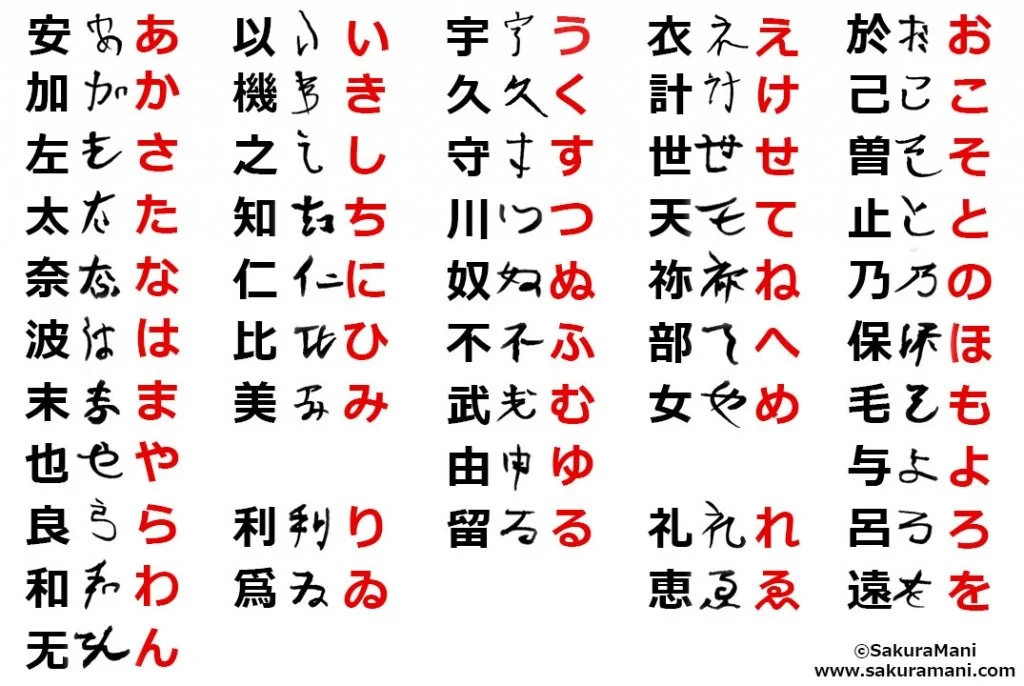
First, choose an image you wish to to embed an image into a post. One thing I do is create a folder called x on my hard drive and copy the image into the folder. In some cases, it may be helpful to rename the file to a short file name. (Today I will be embedding an image of how hiragana characters evolved from kanji character.)
Create a post and type something into it.
There is a link below the typing area which says Attach files (with a picture of a paperclip next to it). Click on this link.
This will open up a File Download window. Navigate to where the file is. Click on the file and press Open. This will allow you to see a thumbnail of the image, but we do want this thumbnail to appear in the post.
Look closely at the thumbnail of the image. In the upper left corner it says Insert. Click on Insert.
You will see two options, one is Thumbnail and the other is Full image. Click on Full image. Click will cause the image to appear full-size in your post (or as large as your screen will allow, which mean the image will be as wide as you cellphone, tablet, or whatever will allow).
You are now ready to post the post with full-size image inside. Click on Post Reply (or Post Thread) and your new post with the image will appear.
Finished!


